Documentation topics
LookDev — Light Settings
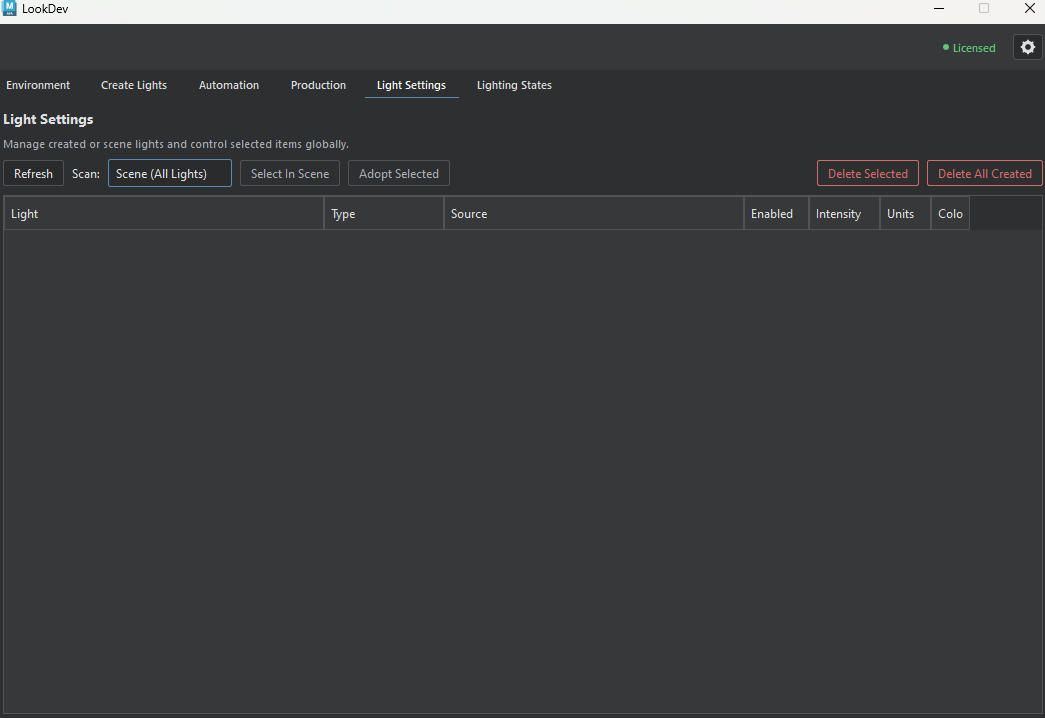
Inspect LookDev-created and compatible scene lights, including supported mesh lights. Available controls depend on light type and renderer integration; changes affect the current Maya scene.
Scene-editing boundary
Adopting a light changes its LookDev management status; Quick Control and Advanced edits change scene attributes directly. Deletion is restricted to Created (Tool) mode and requires confirmation. Row-menu rename and grouping actions vary by selection and scan mode.
Scene-light management
Find and select lights
- Refresh
- Re-reads scene lights after changes made elsewhere in Maya.
- Scan
- Scene (All Lights): compatible scene lights, including supported mesh lights.
Created (Tool): LookDev-managed lights only; required for deletion from this panel. - Light table
- Review each light's name, type, source, enabled state, intensity, units, and color. Select one or more rows before applying shared controls.
- Select In Scene
- Select the highlighted light in Maya. For a mesh light, this selects its source geometry when available.
- Adopt Selected
- Tag compatible existing scene lights as tool-managed. Select rows in the table or lights in Maya first; adoption is an explicit change to management scope.
- Table context menu
- Selection, rename, and grouping actions vary by selected row and scan mode. Pick Group Color offers preset and custom colors.
Quick Control for the selection
- Enabled
- Turn the selected light on or off. Disabling it stops its light contribution; it is different from Hide In Render.
- Color Mode
- Color: edit supported RGB values.
Temperature: edit Kelvin values where the light node supports them. - Kelvin
- Set the color temperature numerically when Temperature mode is available. Lower values are warmer; higher values are cooler.
- Intensity
- Change the strength of the selected lights. Review the Units setting as well, because numeric intensity is interpreted in the light's supported units.
- Units
- Choose the light's supported intensity unit. Available values depend on the renderer and light node.
- Hide In Render
- Hide the emitter from the render camera while retaining its light contribution on supported nodes.
Advanced V-Ray controls
- Shape Type
- Change the V-Ray light shape when the selected node supports shape switching.
- U Size
- Set the supported area's width. This is separate from the source geometry's width.
- V Size
- Set the supported area's height. This is separate from the source geometry's height.
- Directional
- Adjust beam directionality from 0 to 1 on a supported light.
- Directional Strength
- Adjust the directional strength multiplier separately from the directionality amount.
- Directional Preview
- Always: show the viewport gizmo.
Selected: show it only for the selected light.
Disabled: hide it. These modes affect the viewport display, not rendered illumination. - Directional Preview Length
- Change the viewport gizmo's length; this is a preview control, not the light's physical size.
- Double Sided
- Allow a supported area light to emit from both sides rather than one face.
- Occlude Other Lights
- Control whether the selected light blocks contribution from other lights, when the node supports it.
- Affect Diffuse
- Choose whether the selected light contributes to diffuse illumination on supported materials.
- Affect Specular
- Choose whether the selected light contributes to specular highlights.
- Affect Reflections
- Choose whether the selected light appears in supported reflections.
Delete managed lights
- Delete Selected
- Delete selected tool-created lights after confirmation. Switch Scan to Created (Tool) first; deletion from this panel is blocked in Scene (All Lights) mode.
- Delete All Created
- Remove all auto-created lights after confirmation. This is broader than Delete Selected and also requires Created (Tool) scan mode.