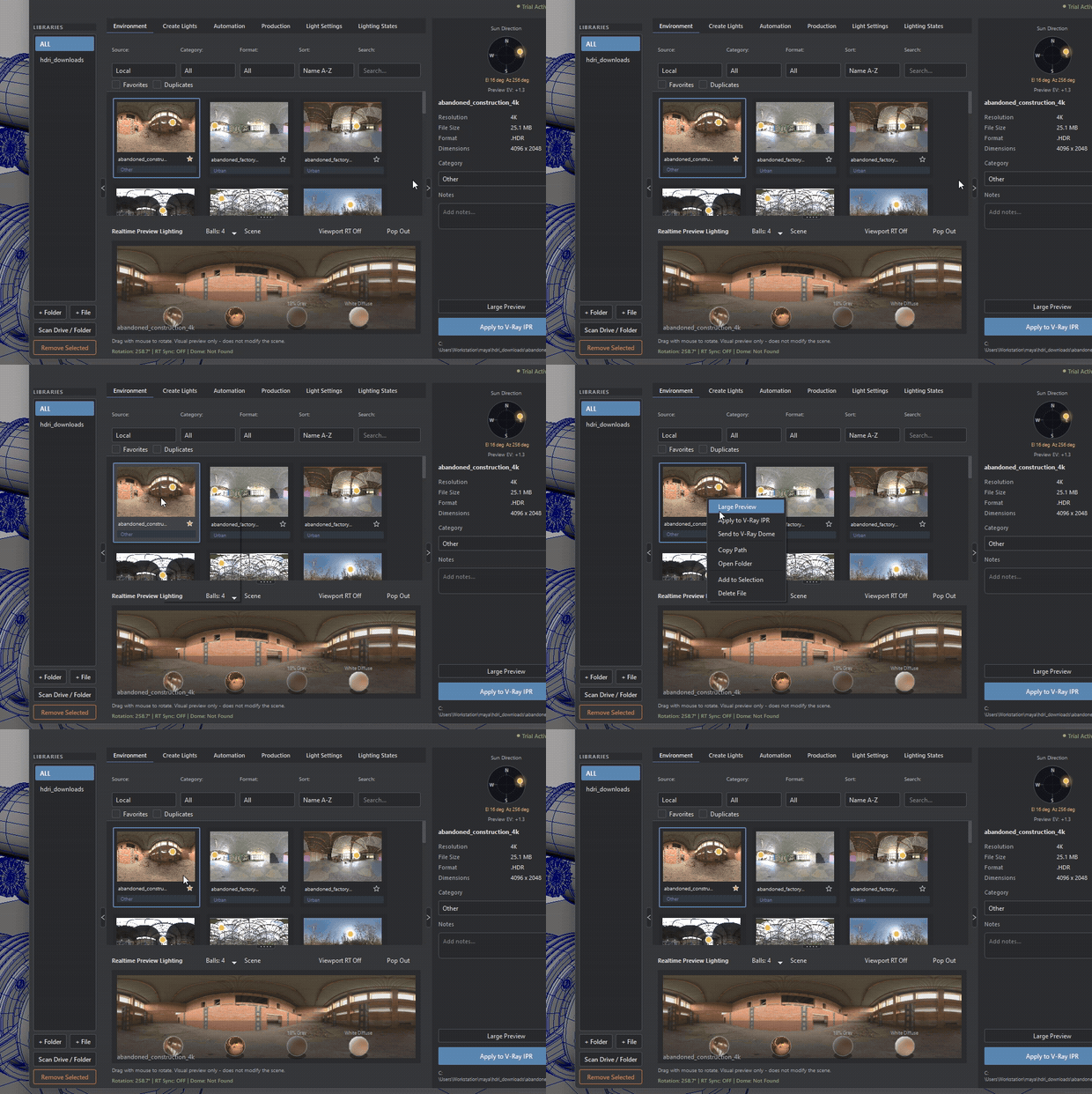
Documentation topics
LookDev — Environment
Manage local .hdr, .hdri, and .exr libraries alongside Poly Haven environments. The preview supports lighting evaluation before an HDRI is applied to the Maya scene. For the broader lighting workflow and compatibility details, see the LookDev for Maya product overview.
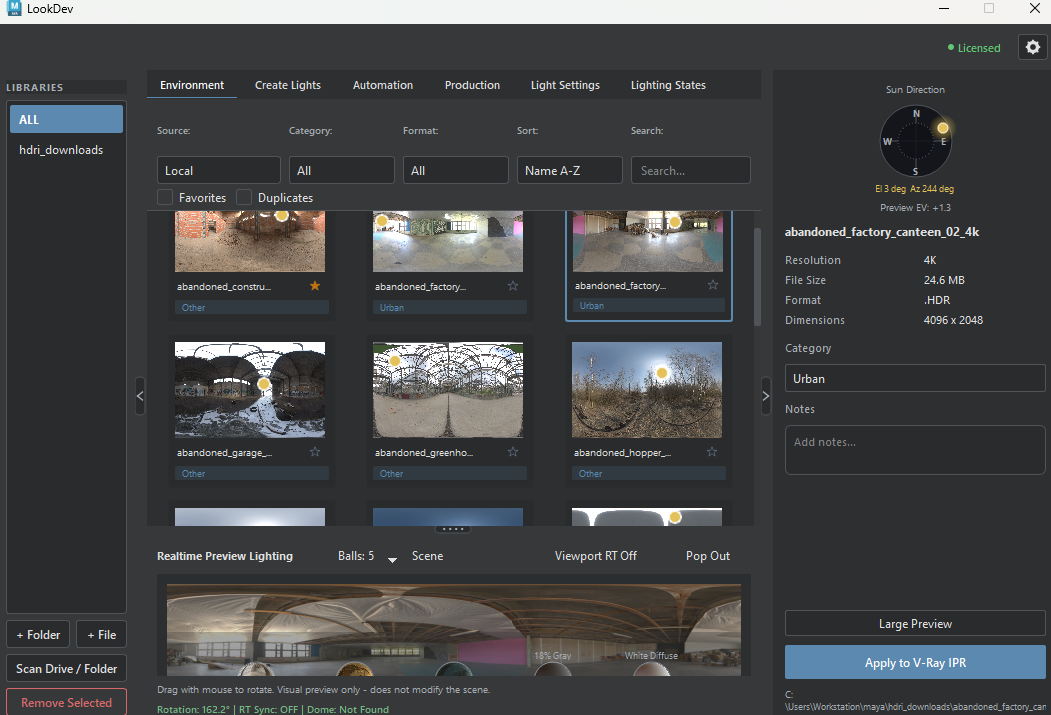
Environment overview
- Libraries
- Browse HDRI folders added to LookDev, or view the combined local library.
- Source and filters
- Switch between local files and Poly Haven, then filter by category, format, favorites, or duplicates.
- HDRI metadata
- Inspect the selected HDRI's resolution, file size, format, dimensions, category, and notes.
- Realtime preview
- Evaluate HDRI rotation and material response in Scene or Material Preview mode.
- Inspect and apply
- Large Preview shows file and exposure details. Applying the HDRI to the V-Ray scene is a separate action.
HDRI library and preview
Library and source
- + Folder
- Add an existing HDRI folder to the local library.
- + File
- Add a single HDRI file without scanning its parent folder.
- Scan Drive / Folder
- Search a drive or folder recursively for HDRI and EXR files. Review the scan results and select which discovered folders to add to the library.
- Libraries list
- Filter the local grid by library location; All shows the combined library.
- Remove Selected
- Remove selected locations from LookDev's library list. This does not delete the HDRI source files from disk.
- Source
- Local: HDRI files and folders added to the library.
Online: Poly Haven catalog. Select a resolution and format before downloading; downloaded files can be added to the local library.
Find and inspect an HDRI
- Search
- Filter HDRIs by filename.
- Category
- Show only HDRIs in a chosen category. Categories can be detected or assigned in the inspector.
- Format
- Filter by file format: HDR, EXR, or All.
- Sort
- Name A-Z, Name Z-A, or Recently Added. Recently Added sorts by file modification time, newest first—not by the date a file was added to the library.
- Favorites
- Filters the grid to starred HDRIs.
- Duplicates
- Show files with matching base filenames, regardless of extension. This does not compare file contents.
- HDRI cards
- The selected HDRI appears in the inspector and preview. Starred HDRIs remain in Favorites.
- Inspector
- Review the selected HDRI's resolution, file size, format, dimensions, category, and notes. Category and notes help organize your own library.
Preview and apply
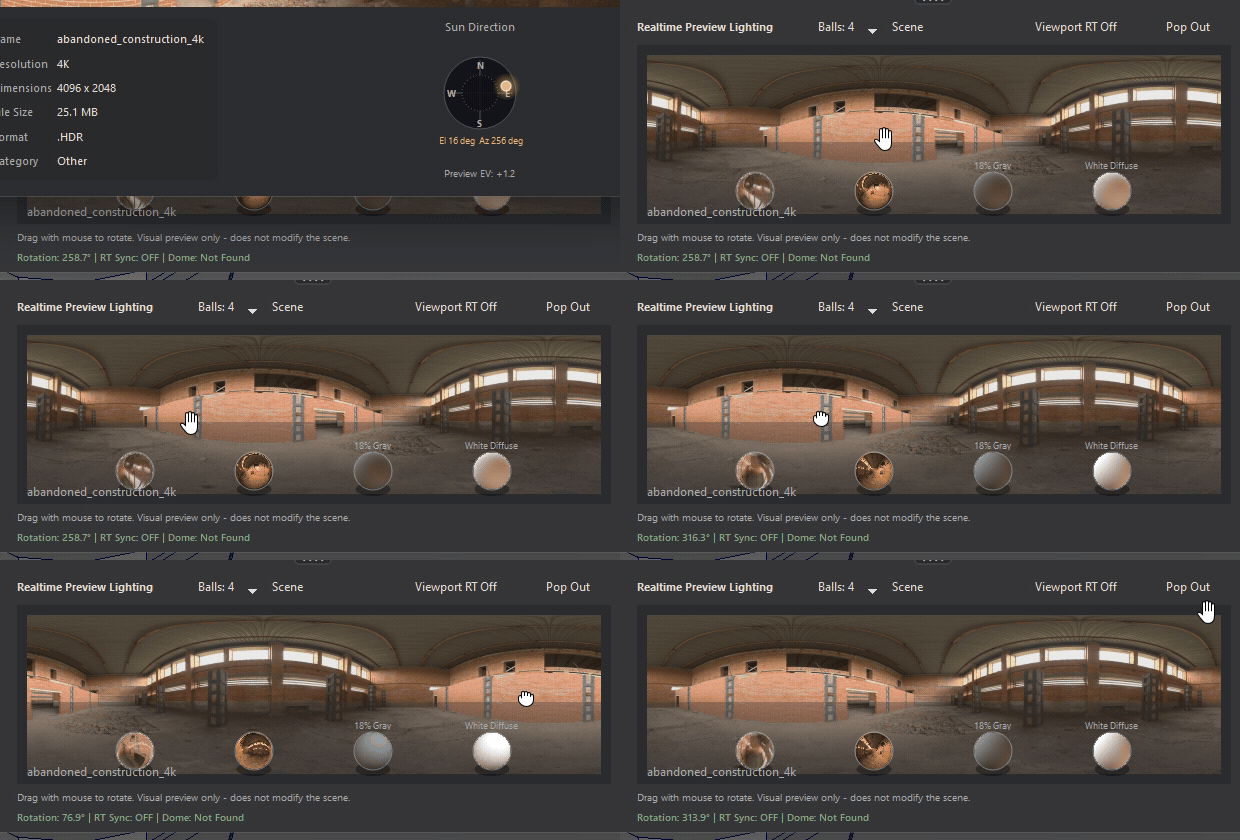
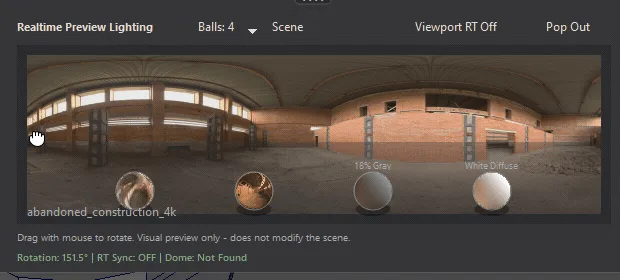
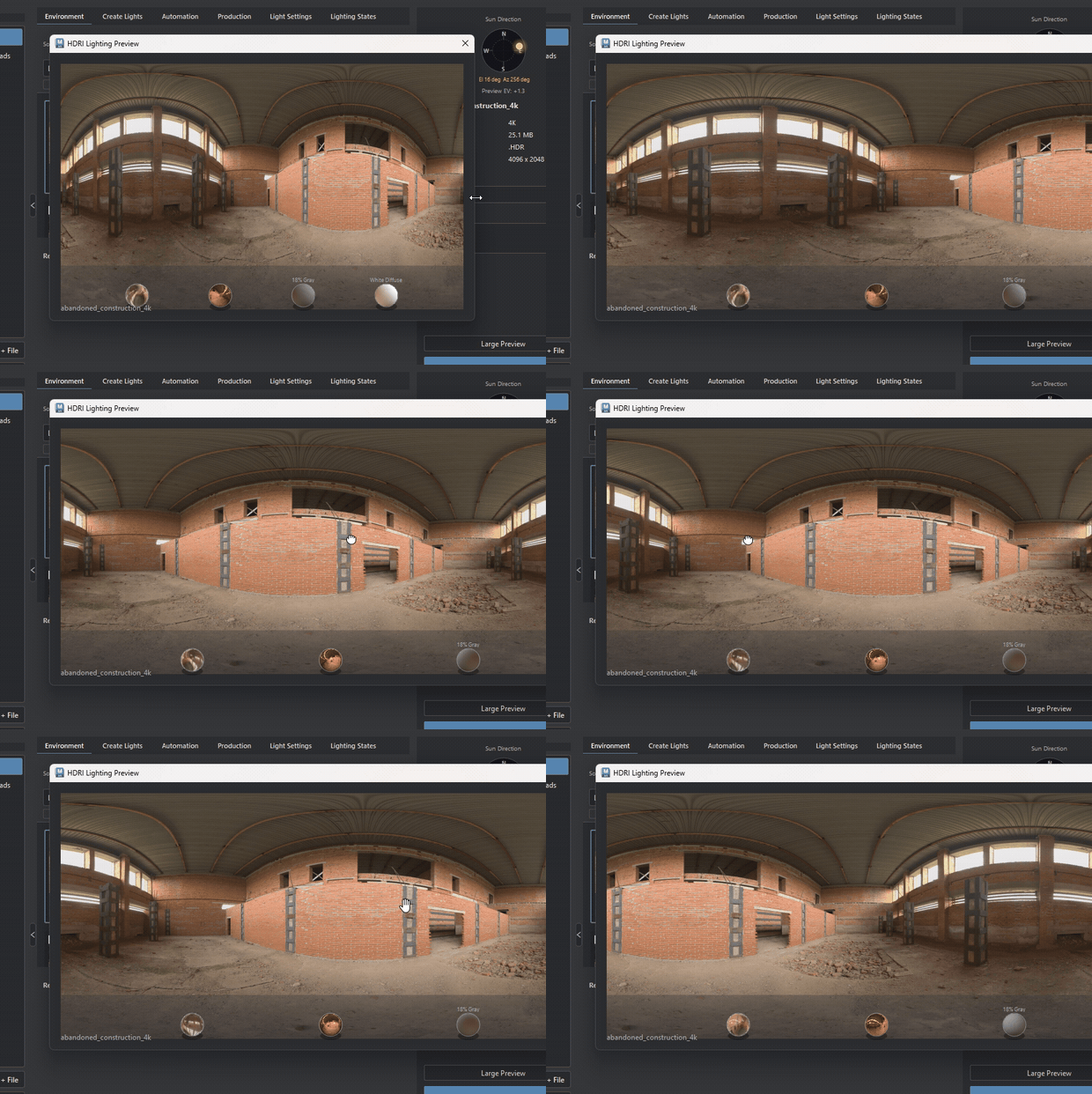
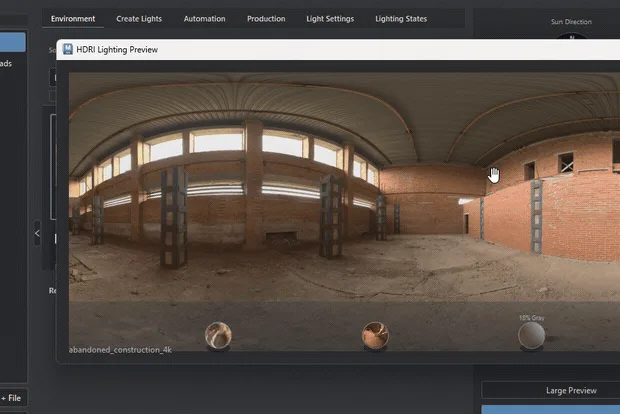
- Realtime Preview Lighting
- Evaluates environment rotation and material response without applying the HDRI to the scene.
- Reference Materials
- Preview how different materials respond to the selected HDRI's lighting and reflections. The RM control selects Glass, Matte, Gold, Plastic, 18% Gray, and White Diffuse; Off hides the selected set. Select a material for an enlarged view.
- Scene / Material Preview
- Scene: reference-room lighting.
Material Preview: isolated material response and specular highlights.
Mode switching is unavailable while Viewport RT is on. - Viewport RT Off / On
- Off shows the built-in visual preview. On switches the preview area to a live Maya viewport for orbit, pan and zoom; its HDRI rotation can sync with the active dome. Turn it off before switching preview mode or using Pop Out.
- Pop Out / Dock Back
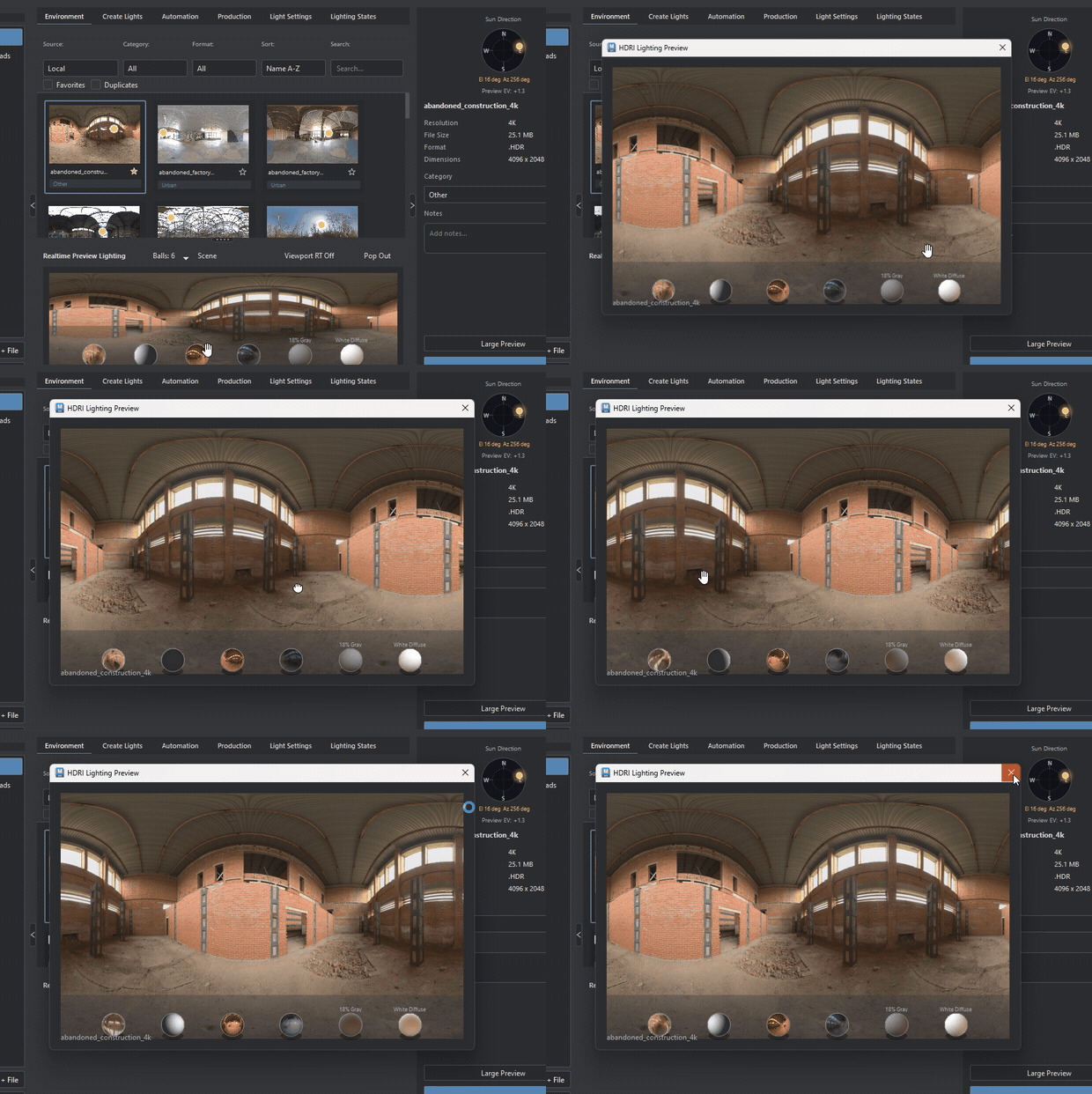
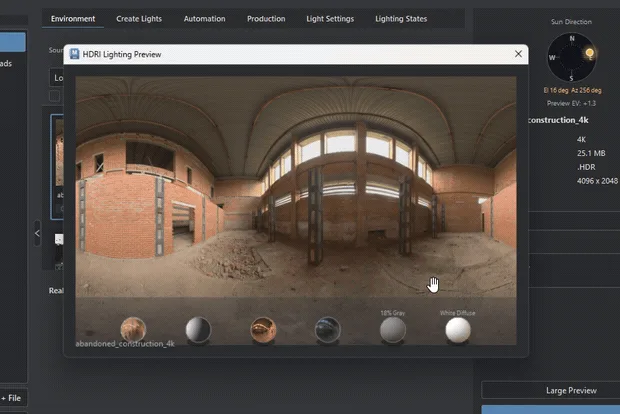
- With Viewport RT off, move the preview canvas into a floating “HDRI Lighting Preview” window. Dock Back, or closing the window, returns it to the panel.
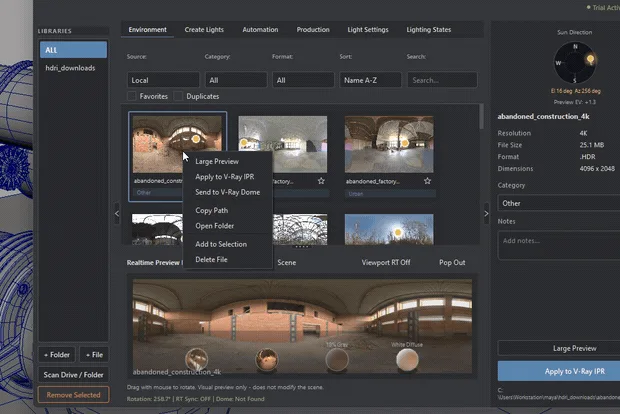
- Large Preview
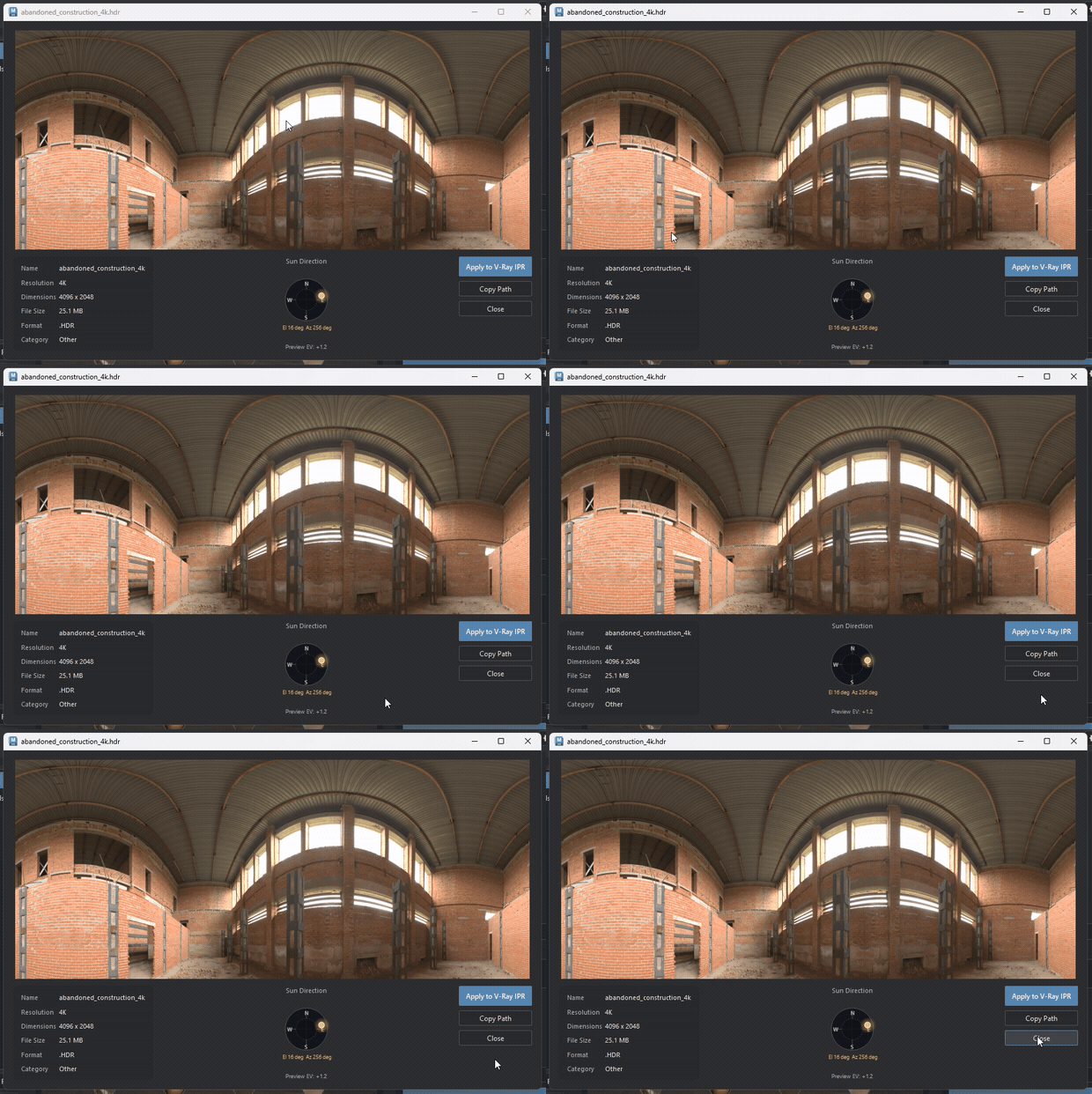
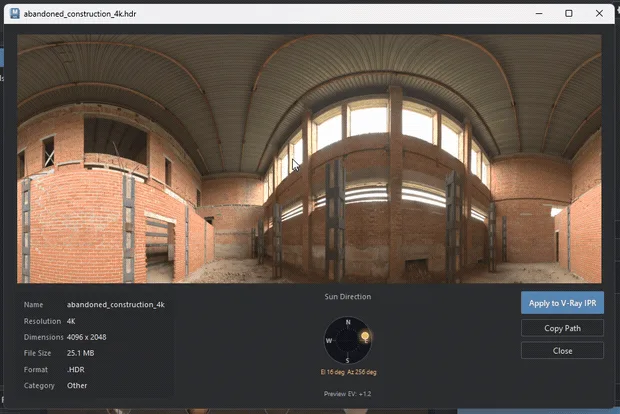
- Inspect the selected HDRI in a larger panorama with file details, sun direction, and exposure data. The window includes Apply to V-Ray IPR and Copy Path. An HDRI must be selected first.
- Sun Direction
- Read the estimated bright-direction marker. It is calculated from image luminance, not from the HDRI filename.
- Preview EV
- Exposure value reported for the preview; it does not set light intensity.
- Apply to V-Ray IPR
- Applies the selected HDRI to the V-Ray setup and can modify the Maya scene. Double-clicking an HDRI card performs the same action.
Environment workflows